Office sign in
Follow these steps to sign in with the assigned Microsoft Office account and complete mandatory two-step verification using Microsoft Authenticator.
Office Sign in - How to
Open Word or Excel on your laptop
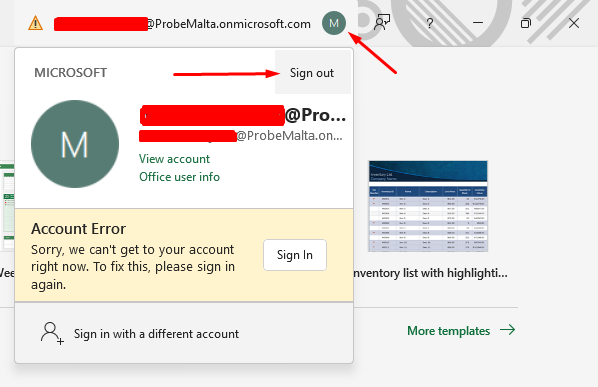
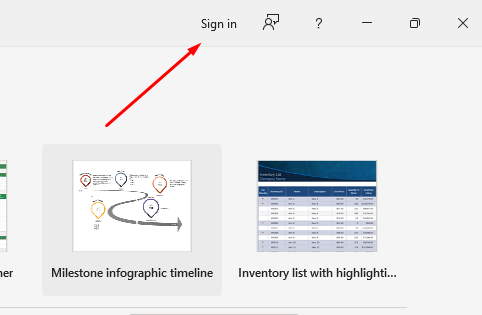
Click on “Sign in”
Enter credentials you received from us (not using your work email address, username contains @energycasinos.com so it will not be EC or LV mail and it has s at the end.
You will be asked to set up 2 step verification, select “YES” (it is mandatory, requirement set by Microsoft, not us so software cannot be used without accepting terms and conditions - enhanced security being one of them)
Depending on the brand of your phone and OS phone have (Android or iOS) download Microsoft Authenticator app from the Google or Apple store
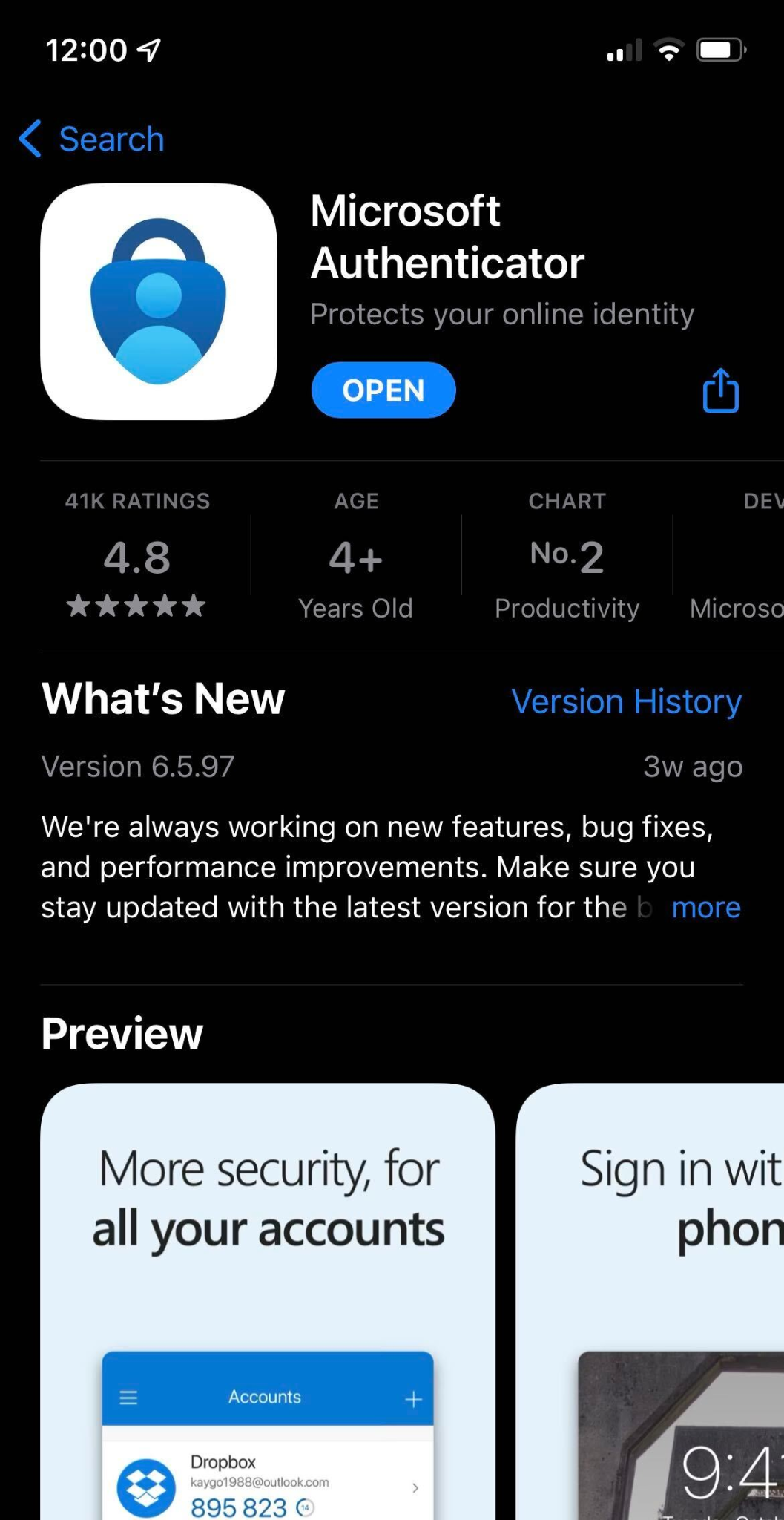
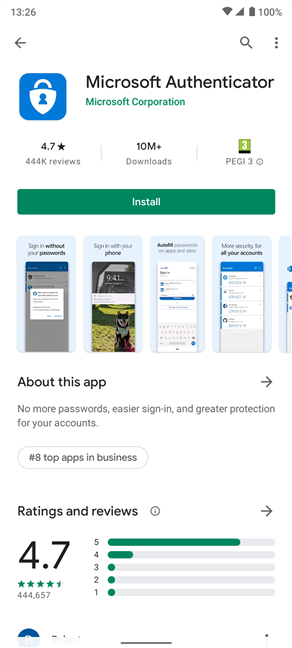
On your laptop you will have instructions on how to set up the authenticator, click on “Next” on the first screen that opens after you start with the setup. You will have QR code displayed on the screen
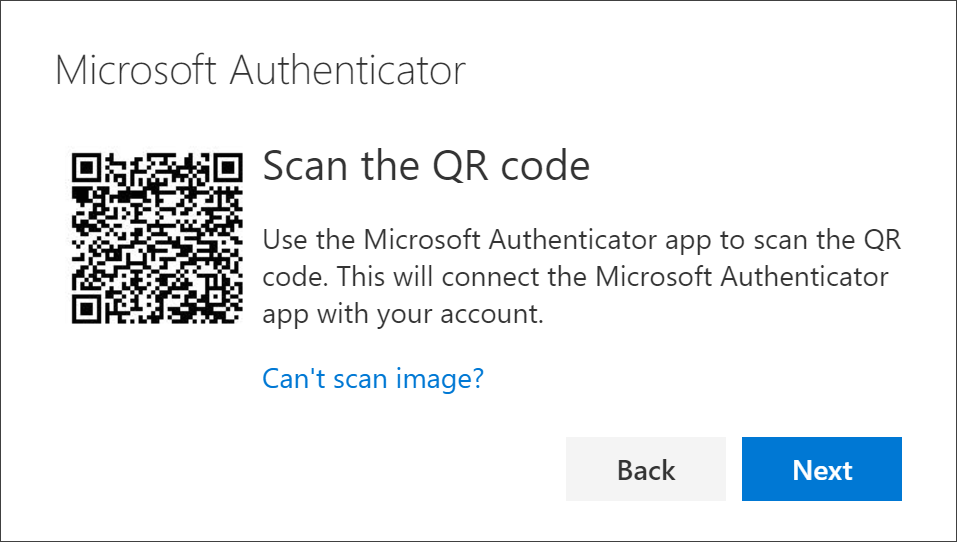
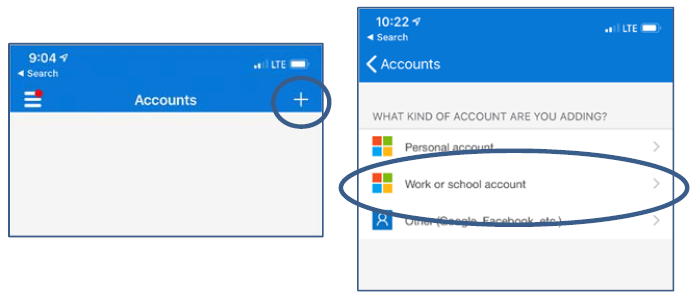
Open Authenticator app on your phone and click on the “+” sign in the top right corner, select “Work or school account” and “Scan a QR code”
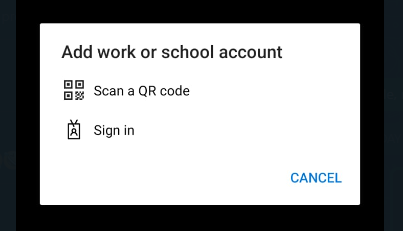
Scan the QR code you have on your laptop.
Account is added and you will be prompted to do a first authentication
Back to top ↑