New OpenVPN connection
Install the approved company VPN through Company Portal, connect using Microsoft authentication, disconnect when finished, and resolve common access issues.
Installation and connect/disconnect
Deployment of the new OpenVPN server will go entirely through Company Portal utilizing only preapproved users.
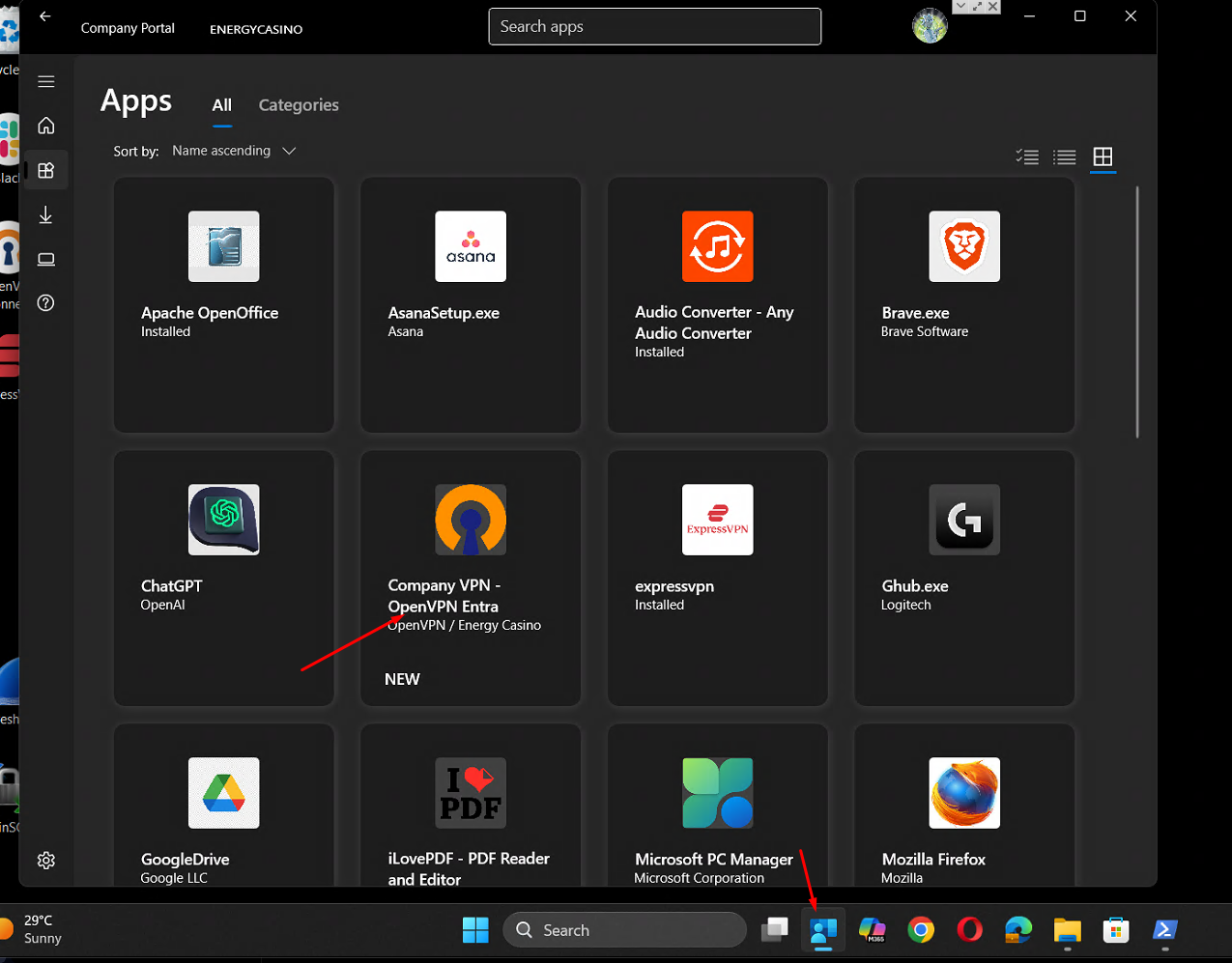
Open Company Portal app on your laptop (when laptop setup is done the app is pinned to your taskbar, small blue icon close to the search bar). If its not there simply search for Company portal and click on the icon
Open it and go to Apps section.
Find Company VPN - OpenVPN Entra app and click on it
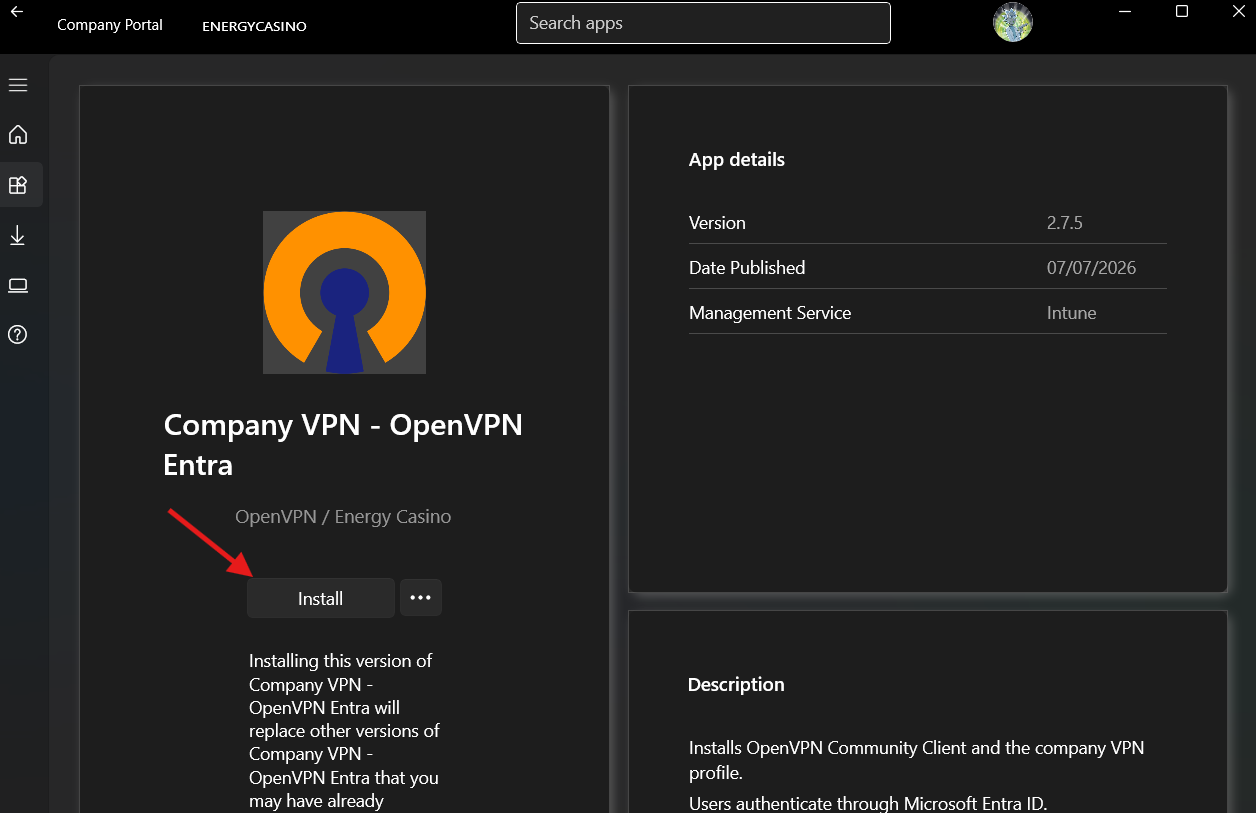
Click on Install
Wait for a few minutes for installation to complete and after its done you will see 2 new icons appearing on your desktop. OpenVPN GUI and Company VPN with notification saying Installed on company portal
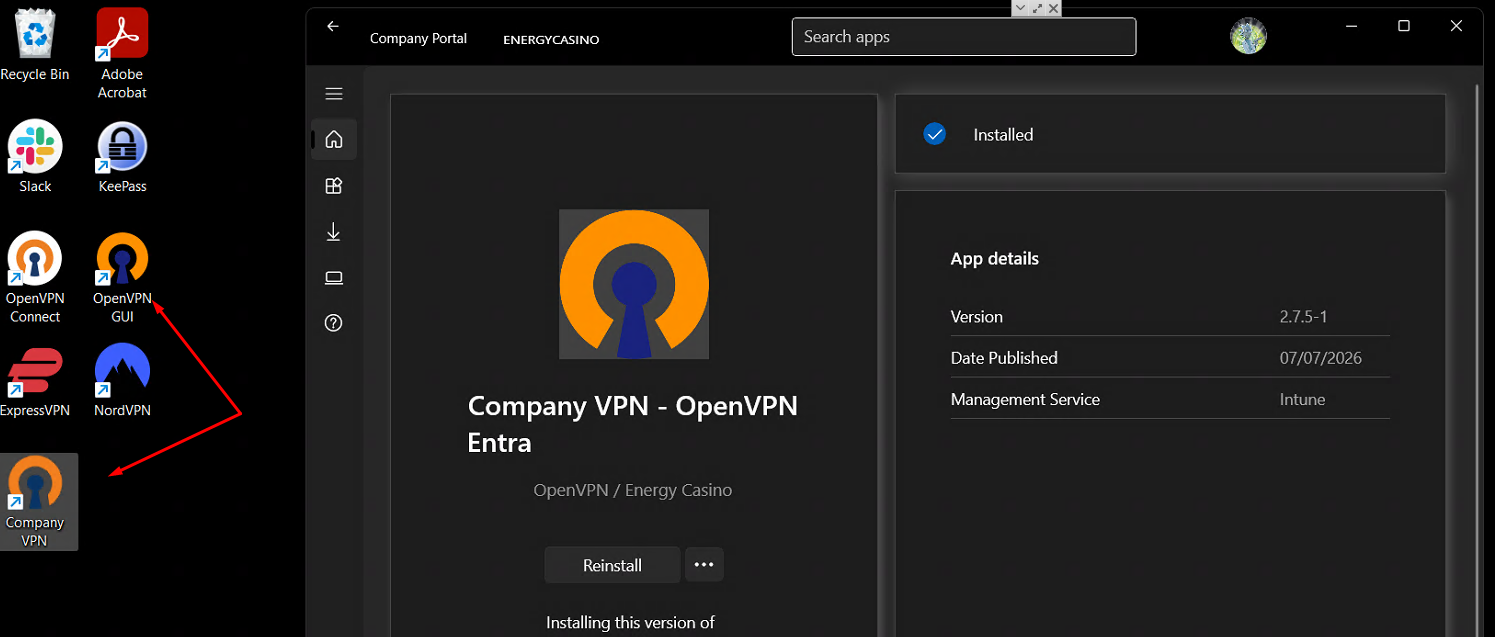
Double click on Company VPN to start the software
Once started you will see new icon appearing in menu next to the clock
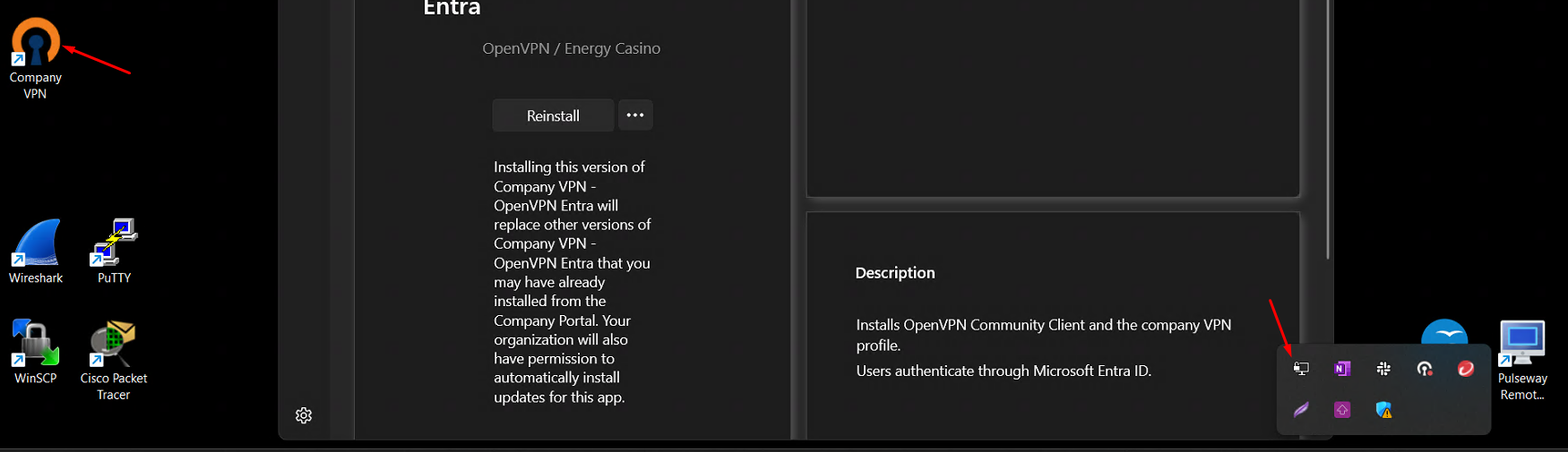
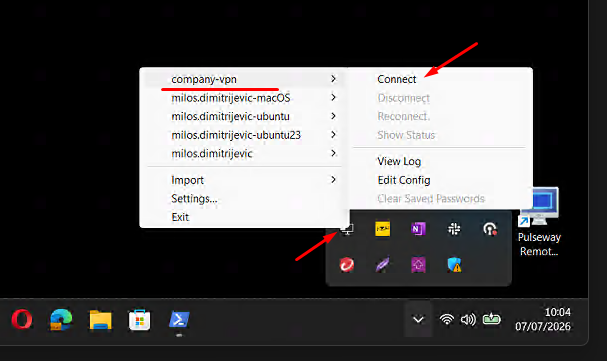
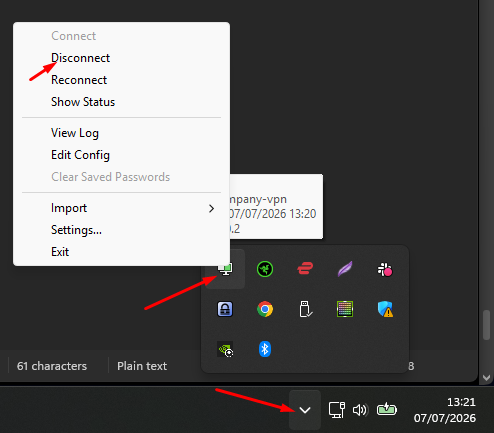
Right click on the icon and menu will appear
If you have any old connections they should be listed just like you are seeing on the screenshot below and a new connection called company-vpn appears. Hover over it and menu to the right will open with Connect at the top. Click on it
Briefly a new page will open in the default browser (Chrome, Edge…) with a message displaying Access granted like the screenshot below and a message in the bottom right corner (just above the clock). You are now connected and you can close the page (page will auto close itself after a few seconds if you do not do so)
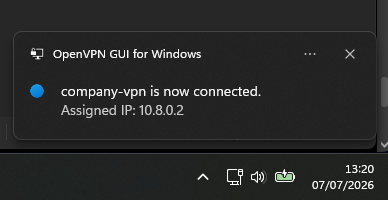
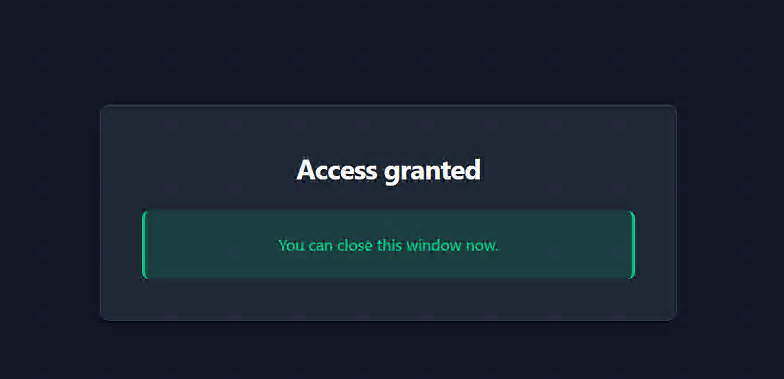
You are now connected to a newly created VPN service with enhanced security and the same level of access you had on the old one.
You disconnect same way you connect, clicking on the menu in the bottom right and right-clicking on the OpenVPN icon. This time you will choose Disconnect from the list
Troubleshooting
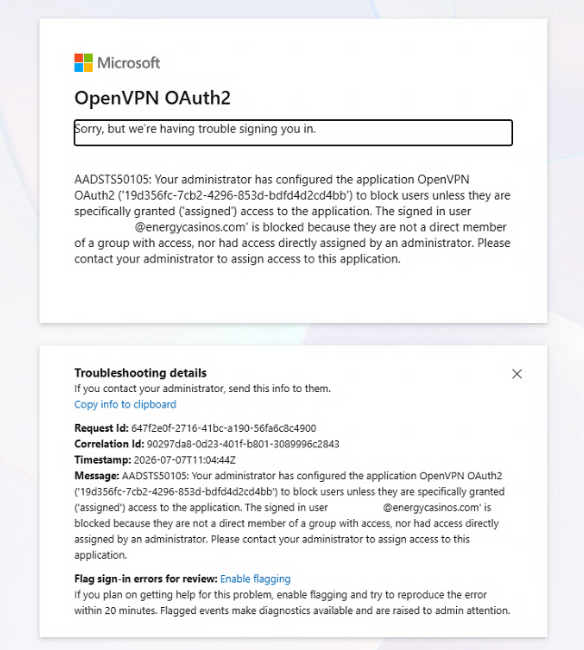
If by any chance, instead of Access granted page you see a page from the screenshot below that means that your user is excluded from the VPN group for some reason. In that case ping IT for advice
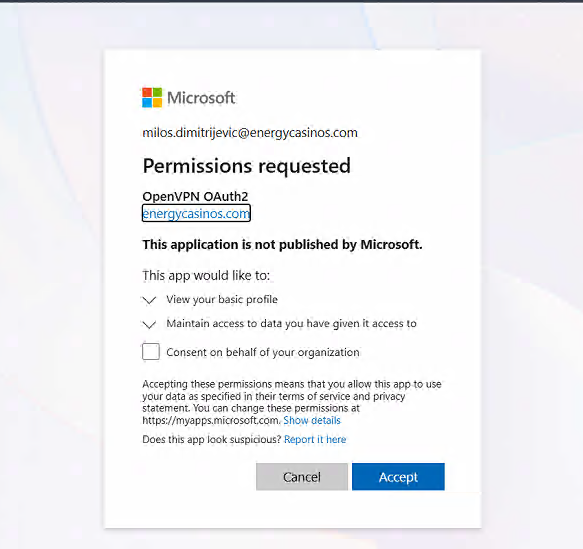
New users and new laptop (either replacement or out-of-the-box new) might have additional step before Access granted page is shown. Page might be looking like the one you are seeing below asking for permission (just click Accept).
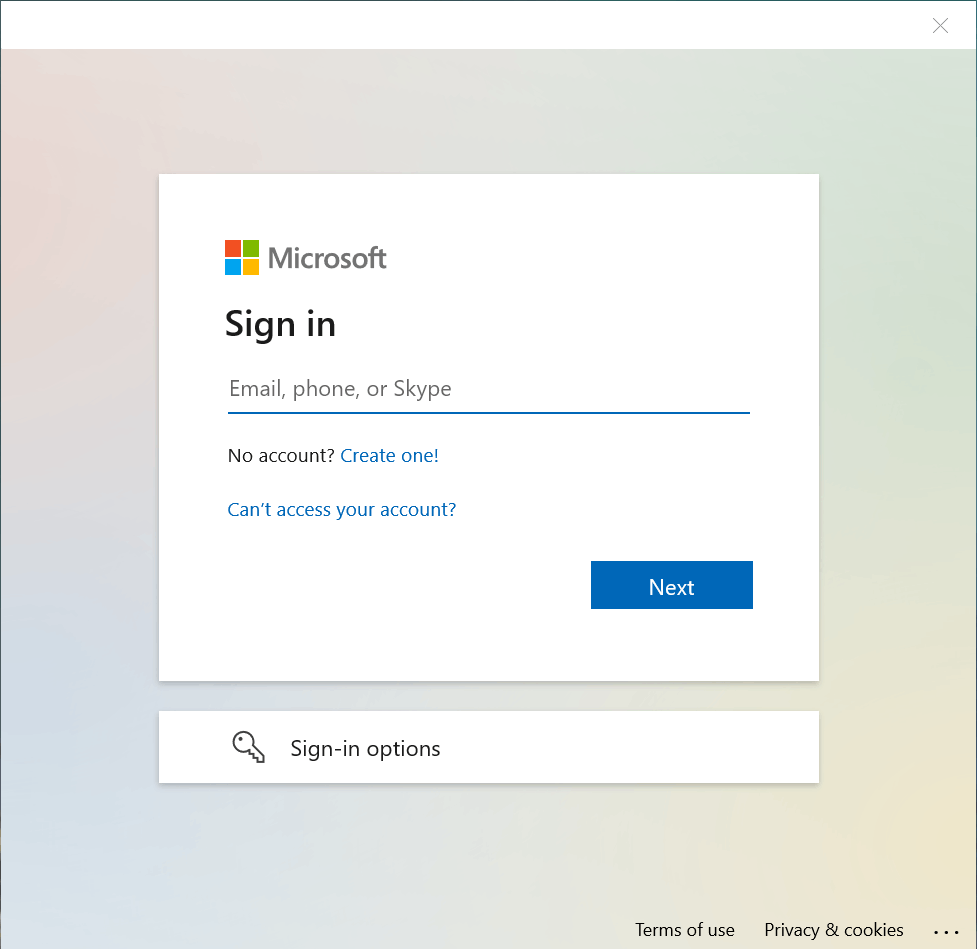
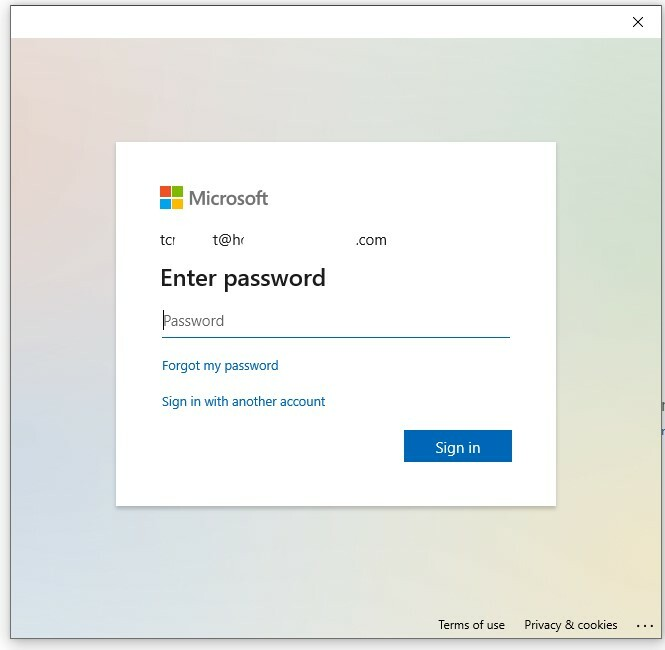
Also new users might be prompted to sign in to your Microsoft account (so username for your laptop containing @energycasinos). You will have to sign in using username and password (if you do not have password, contact IT, procedure for reset is quite quick). Steps would look like below